By admin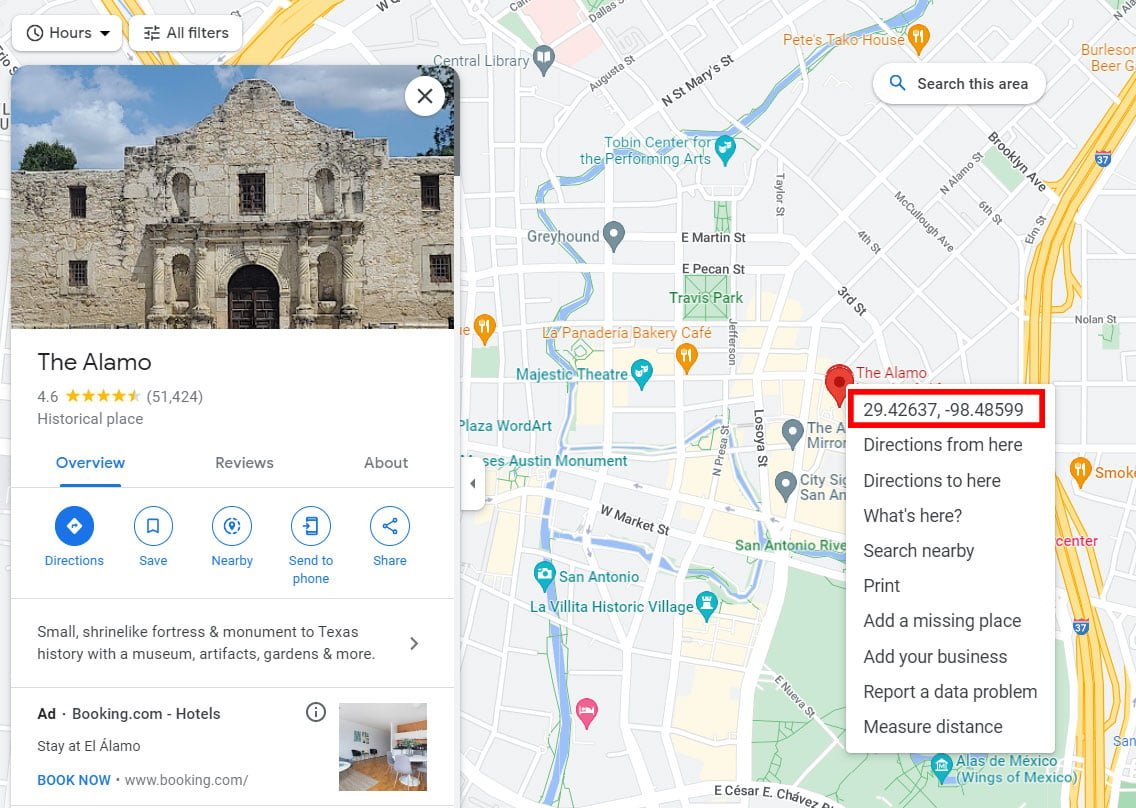
Google Maps has revolutionized the way we navigate and explore the world. Beyond simply providing directions and displaying street views, it offers a wealth of geographic information, including the precise coordinates of any location on Earth. Understanding how to find latitude and longitude on Google Maps empowers you to pinpoint exact spots, share locations accurately, and integrate geographic data into various applications. This comprehensive guide will walk you through the different methods of extracting these crucial coordinates, ensuring you can confidently navigate the world of latitude and longitude within Google Maps.
Understanding Latitude and Longitude: The Foundation of Geographic Location
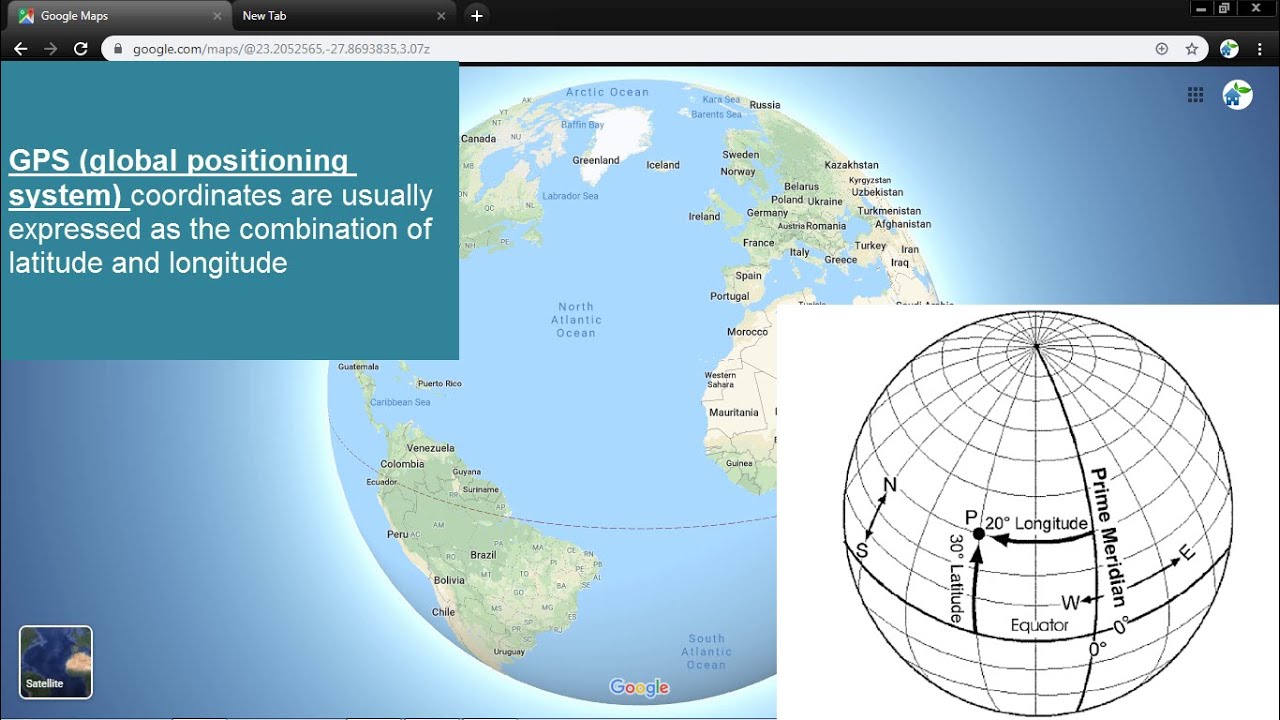
Before diving into the practical steps, it’s essential to grasp the fundamental concepts of latitude and longitude. These two coordinates form a grid system that allows us to uniquely identify any point on the globe.
-
Latitude: Imagine slicing the Earth horizontally into parallel circles. Latitude measures the angular distance, in degrees, north or south of the equator, which is designated as 0°. The North Pole is located at 90° North, and the South Pole is at 90° South. Lines of equal latitude are called parallels.
-
Longitude: Now, picture slicing the Earth vertically, like wedges of an orange. Longitude measures the angular distance, in degrees, east or west of the Prime Meridian, which is an imaginary line running from the North Pole to the South Pole through Greenwich, England, and designated as 0°. Longitude values range from 0° to 180° East and 0° to 180° West. Lines of equal longitude are called meridians.
Together, latitude and longitude create a unique address for every location on Earth. For example, the coordinates for the Eiffel Tower in Paris are approximately 48.8584° N, 2.2945° E.
Methods for Finding Latitude and Longitude on Google Maps
Google Maps provides several easy-to-use methods for obtaining latitude and longitude coordinates. Here’s a detailed breakdown of each approach:
1. The Right-Click Method (The Easiest and Most Common)
This is by far the simplest and most direct method for finding latitude and longitude on Google Maps.
-
Step 1: Open Google Maps: Navigate to the Google Maps website (maps.google.com) or open the Google Maps app on your mobile device.
-
Step 2: Locate the Desired Area: Use the search bar to find a specific address, city, or landmark. You can also manually zoom and pan the map until you locate the area you’re interested in.
-
Step 3: Right-Click (or Long Press on Mobile): Once you’ve found the exact spot you want the coordinates for, right-click on that location on the map. If you’re using a mobile device, long-press on the desired location.
-
Step 4: Copy the Coordinates: A context menu will appear. The latitude and longitude coordinates will be displayed at the very top of this menu. The coordinates will typically be presented in decimal degrees format (e.g., 34.0522° N, 118.2437° W). Simply click on the coordinates to copy them to your clipboard.
Pros: This method is incredibly quick, easy, and requires no special tools or knowledge.
Cons: The accuracy depends on how precisely you click on the desired location. Small variations in your click can result in slightly different coordinates.
2. Using the Search Bar to Find Coordinates
While primarily used for finding places, the search bar can also be used to directly find locations by inputting their coordinates. This is useful if you already have the coordinates and want to find the corresponding location on the map.
-
Step 1: Open Google Maps: Navigate to the Google Maps website (maps.google.com) or open the Google Maps app on your mobile device.
-
Step 2: Enter Coordinates in the Search Bar: In the search bar, type the latitude and longitude coordinates in one of the following formats:
-
Decimal Degrees (DD): This is the most common format. Example:
34.0522, -118.2437(Latitude first, followed by longitude, separated by a comma). Use a minus sign (-) for South latitude and West longitude. -
Degrees, Minutes, Seconds (DMS): This format uses degrees, minutes, and seconds to represent the coordinates. Example:
48°51'28.7"N 2°17'40.2"E(Latitude first, followed by longitude). Note the use of degree (°), minute (‘), and second (") symbols. -
Degrees and Decimal Minutes (DMM): This format uses degrees and decimal minutes. Example:
40 26.767, -79 56.933(Latitude first, followed by longitude).
-
-
Step 3: Search: Press Enter or click the search icon.
-
Step 4: View the Location: Google Maps will pinpoint the location corresponding to the entered coordinates on the map. The coordinates will also be displayed in the information panel on the left side of the screen (or at the bottom of the screen on mobile devices).
Pros: Allows you to quickly locate a place based on its known coordinates. Supports multiple coordinate formats.
Cons: Requires you to already have the latitude and longitude coordinates.
3. Using the Google Maps URL
Every location on Google Maps has a unique URL. This URL often contains the latitude and longitude coordinates within it.
-
Step 1: Locate the Desired Location: Find the location on Google Maps using the search bar or by manually navigating the map.
-
Step 2: Get the URL: Copy the URL from the address bar of your web browser. If you’re using the Google Maps app, you can typically find a "Share" option that allows you to copy the URL to your clipboard.
-
Step 3: Extract the Coordinates from the URL: The URL will typically contain a part that looks similar to this:
@34.0522,-118.2437,15z.- The first number (34.0522 in this example) represents the latitude.
- The second number (-118.2437 in this example) represents the longitude. The negative sign indicates West longitude.
- The third number (15z in this example) represents the zoom level. You don’t need this for finding the coordinates.
Pros: Can be useful when you’re already sharing a location via URL and need to quickly extract the coordinates.
Cons: Requires manual extraction of the coordinates from the URL string. Can be slightly more complex for less technically inclined users.
4. Using the Google Maps API (For Developers)
For developers and programmers, the Google Maps API offers a powerful way to programmatically retrieve latitude and longitude coordinates. This method requires coding knowledge and setting up a Google Maps API key.
-
Understanding the API: The Google Maps API provides various services, including geocoding. Geocoding is the process of converting addresses or place names into geographic coordinates (latitude and longitude).
-
Implementing the Geocoding Request: You would typically use a programming language like JavaScript, Python, or Java to make a request to the Google Maps Geocoding API. The request would include the address or place name you want to geocode.
-
Parsing the API Response: The API will return a JSON response containing the latitude and longitude coordinates. You would then need to parse this JSON data to extract the desired coordinates.
Pros: Highly accurate and automated. Allows for batch geocoding of multiple addresses. Integrates seamlessly into custom applications.
Cons: Requires programming knowledge and setting up a Google Maps API key (which may involve costs depending on usage). More complex than the other methods.
Tips for Accuracy and Troubleshooting
-
Zoom In: Zooming in on the map before right-clicking (or long-pressing) allows for more precise selection of the desired location, resulting in more accurate coordinates.
-
Verify the Format: Ensure you’re using the correct coordinate format when entering coordinates into the search bar. Using the wrong format will result in inaccurate results or no results at all.
-
Beware of Ambiguity: If you’re searching for a place name that is common, Google Maps may return multiple results. Make sure you select the correct location from the list.
-
Coordinate Conversion Tools: If you need to convert between different coordinate formats (e.g., from DMS to decimal degrees), there are numerous online coordinate conversion tools available.
-
Check for Errors: If you’re getting unexpected results, double-check that you’ve entered the coordinates correctly and that you’re using the correct coordinate format.
Applications of Latitude and Longitude Coordinates
Understanding how to find and use latitude and longitude coordinates opens up a wide range of possibilities:
-
Navigation: Essential for GPS navigation systems and mapping applications.
-
Geocaching: Used to hide and find hidden caches using GPS coordinates.
-
Real Estate: Allows for precise location identification and mapping of properties.
-
Scientific Research: Crucial for collecting and analyzing geographic data in various fields, such as environmental science, geology, and archaeology.
-
Emergency Services: Facilitates accurate location identification for emergency responders.
-
Custom Mapping Applications: Enables developers to create custom mapping solutions tailored to specific needs.
Conclusion
Finding latitude and longitude on Google Maps is a straightforward process that unlocks a wealth of geographic information. Whether you’re a casual user looking to share a precise location with a friend or a developer building a sophisticated mapping application, understanding these methods will empower you to leverage the full potential of Google Maps. By mastering these techniques, you can confidently navigate the world of geographic coordinates and unlock the secrets hidden within the map.